Let’s Talk

Migrate Your WordPress Sites: A Definitive Guide [Easy & Fast]

January 19, 2024

Migrate Your WordPress Sites: A Definitive Guide [Easy & Fast]
about left
about bottom
about right
about right bottom
ad.webp

Over 43% of the web runs on WordPress, yet the moment someone needs to migrate a WordPress site to a new host, the process feels anything but routine.

The fear is legitimate.

A failed WordPress migration does not just break a website. It can affect SEO rankings, form submissions, analytics tracking, checkout functionality, and customer trust within hours.

According to W3Techs WordPress Usage Statistics, WordPress powers more than 43% of all websites globally, making migration reliability a critical operational concern for businesses of every size.

What most migration guides miss is that failure rarely happens during the transfer itself. It usually happens before the migration begins or after the new site goes live.

This guide covers the complete process, including:

  • pre-migration preparation
  • plugin-based migration
  • manual migration
  • SEO preservation
  • downtime prevention
  • post-launch validation
  • common troubleshooting scenarios

So you can migrate your WordPress website safely without damaging performance, visibility, or user experience.

Pre-Migration Checklist: What to Do Before You Start

The WordPress site migration checklist isn’t administrative busywork. Every item on it represents a failure mode caught in advance, rather than a recovery task you’ll face under pressure with a live site down. Skipping even one step can mean a corrupted database, missing media files, or an SSL mismatch that takes days to trace.

#1. Build Your WordPress Site Migration Checklist Around a Full Backup First

A full site backup means your database export (.sql file) AND your complete WordPress file directory, including wp-content, all themes, all active plugins, and your .htaccess file.

There are many tools that let you store backups to Google Drive, Dropbox, and Amazon S3. Run a fresh backup immediately before migrating, not the one from yesterday. The few minutes this takes pays off the moment something breaks mid-transfer.

#2. Create a Staging Environment Before Any Live Migration Work

A staging environment is a private, non-indexed copy of your site hosted on a subdomain or locally, where you can test the migrated version before switching DNS. Managed hosts like Cloudways, SiteGround, and WP Engine offer one-click staging environments.

If your current host doesn’t, set one up by pointing a subdomain at a temporary directory. Testing on staging catches the majority of migration errors before they touch your live site.

#3. Audit Your Plugin Stack, Theme Dependencies, and PHP Version

Check the PHP version your current site runs on and confirm your new host supports the same version. Plugin conflicts post-migration are frequently traced back to PHP version mismatches, not the migration process itself.

Deactivate any plugins you no longer use before migrating: fewer files, smaller export, and a cleaner environment on the new host. This step alone reduces migration time noticeably on sites with bloated plugin libraries.

#4. Document Your Current SEO Configuration as a Baseline

Record your current permalink structure, sitemap URL, and robots.txt setup. Screenshot your Google Search Console coverage report. These become your post-migration benchmarks.

A spike in 404 errors or crawl anomalies in Search Console within 48 hours of going live on the new host is the signal to investigate; a clean baseline tells you exactly what changed.

Blog Image

How to Avoid Downtime During WordPress Migration

DNS propagation issues, incomplete file transfers, or untested staging environments usually cause downtime during a WordPress migration. The safest migrations reduce risk before the DNS switch happens.

Practical Steps to Reduce Downtime
  • Lower DNS TTL 24 hours before migration
  • Complete all testing inside a staging environment
  • Keep the old hosting account active during propagation
  • Verify forms, images, redirects, and SSL before switching DNS
  • Schedule migrations during low-traffic hours
  • Avoid making content changes during migration windows

A properly planned migration often completes with minimal or no visible downtime for users.

Choosing the Right Migration Method

When Plugin-Based Migration Is the Smarter Call

Plugin-based migration handles file transfer, database export, import, and URL rewriting in a single coordinated workflow. For most site owners and small agencies, a WordPress migration plugin reduces a four-hour manual process to approximately 45 minutes.

Duplicator, with over 1 million active installs and a 4.9-star rating on WordPress.org, is the most commonly used tool for this. All-in-One WP Migration and Migrate Guru each cover the same core workflow with different trade-offs on file size limits, automation depth, and server-side processing.

The right choice depends on site size and technical comfort. All-in-One WP Migration works well for sites under 512MB with no technical configuration required. Duplicator’s free tier handles unlimited restore sizes and includes recovery tools. For large sites or multisite networks, Migrate Guru runs the migration on the server side, so your local machine never becomes a bottleneck.

When Manual Migration Gives You the Control You Need

Manual migration takes longer but gives you direct visibility into every layer of the process. Developers migrating sites with complex custom database tables, multisite configurations, or non-standard directory structures often find the manual route less prone to unexplained failures. If a plugin migration fails silently at the database import step, identifying which table caused it requires digging into logs. Manual migration makes every failure point explicit.

That said, manual migration is not inherently more reliable than a well-configured WordPress migration plugin. The reliability difference depends on the site’s complexity and your familiarity with phpMyAdmin, FTP, and wp-config.php, not on the method itself.

Best WordPress Migration Plugins in 2026

The right WordPress migration plugin depends on your website size, technical comfort level, and hosting environment.

Plugin Best For Key Strength
Duplicator Most WordPress websites Flexible and reliable migration workflow
All-in-One WP Migration Beginners Simple drag-and-drop interface
Migrate Guru Large websites Server-side migration handling
UpdraftPlus Backup-focused migrations Cloud backup integration
WPVivid Small-to-medium sites Easy scheduled backups and migrations

As per the WordPress Plugin Repository Duplicator reports over 1 million active installs, making it one of the most widely used migration tools in the WordPress ecosystem.

How to Migrate a WordPress Site Using a Plugin (Step-by-Step)

This walkthrough uses Duplicator, since it handles the widest range of site sizes, and the free version covers most common migration scenarios without file size restrictions on restores.

Step 1: Install and Activate Your WordPress Migration Plugin

Log in to your WordPress admin dashboard. Go to Plugins > Add New, search for Duplicator, install it, and activate. Once active, Duplicator appears in your left sidebar under its own menu.

Step 2: Create the Migration Package on Your Current Site

Click Duplicator > Packages > Create New. Run the pre-build scan to catch any configuration warnings: large files, oversized databases, and non-standard table prefixes. Name your package, run the build, and download both the installer file (.php) and the archive (.zip). Both files are required for the next steps. The installer file is useless without the archive.

Step 3: Prepare a Fresh Database on Your New Host

On your new host, create a MySQL database, create a database user, and assign full privileges. If your new host uses cPanel, the MySQL Databases section handles all three in under five minutes. Note the database name, username, and password; you’ll enter these during the Duplicator import step.

Step 4: Upload the Package Files and Run the Installer

Upload both Duplicator files to your new host’s root directory via FTP using FileZilla, or through your host’s cPanel file manager. Navigate to yoursite.com/installer.php in a browser. The installer walks you through database connection, archive extraction, and URL updating in a guided interface. Enter your new database credentials when prompted.

Step 5: Complete Your WordPress Site Migration Checklist Verification

After the installer finishes, log in to your new WordPress admin dashboard. Check that pages load, images display correctly, and no critical functions are broken. Run a URL search-replace if Duplicator didn’t handle it automatically; the Velvet Blues Update URLs plugin covers this. Update your DNS pointing to the new host only after this full verification step passes.

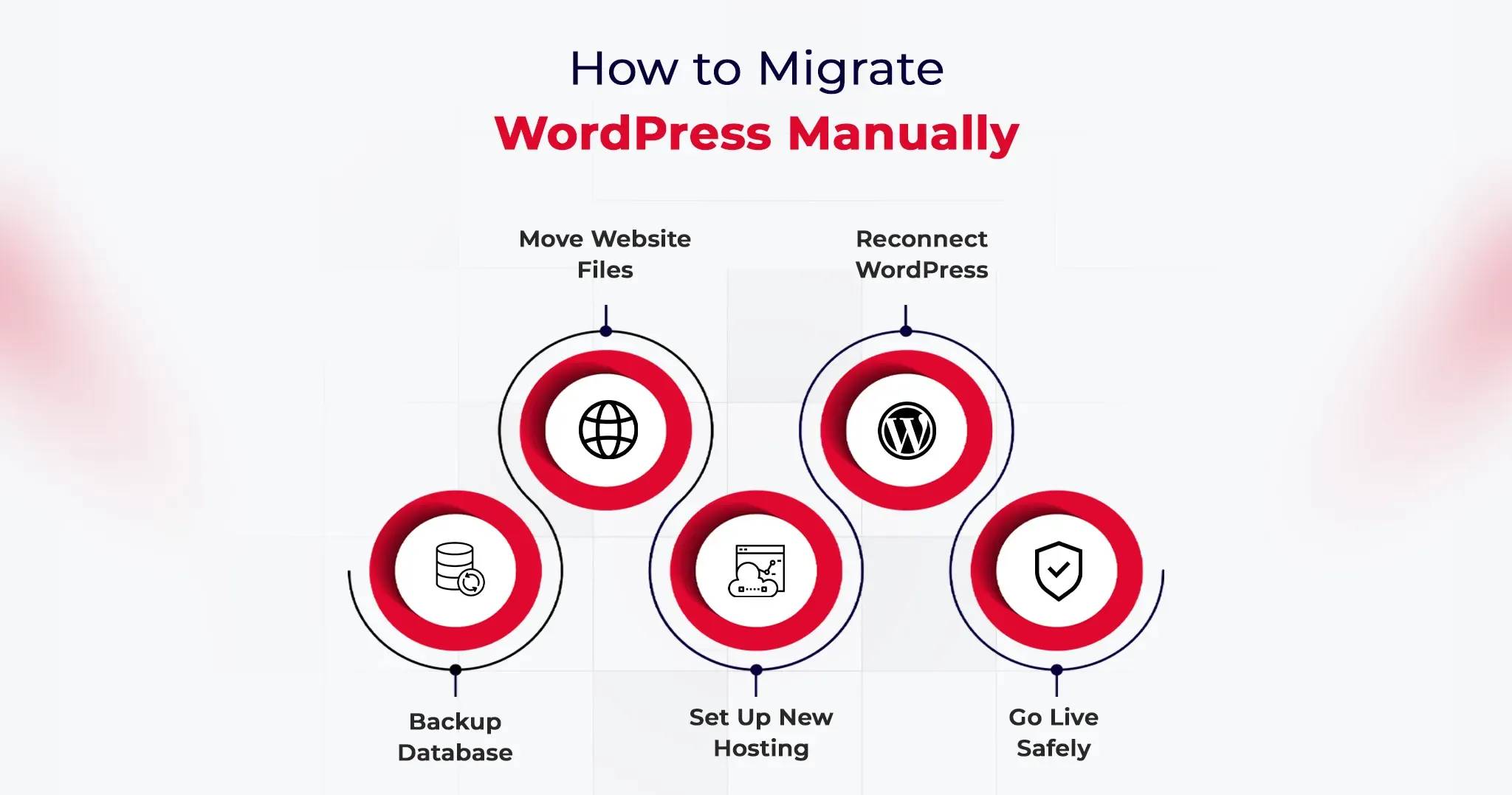
How to Migrate WordPress Site Manually (Step-by-Step)

Manual migration covers the same destination as the plugin method but gives you direct access to every component of the transfer.

Step 1: Export Your WordPress Database via phpMyAdmin

Log in to your current hosting cPanel and open phpMyAdmin. Select your WordPress database from the left panel, click the Export tab, choose the Quick export method, set the format to SQL, and click Go. Save the .sql file locally. This file contains every post, page, user, plugin setting, theme option, and WordPress configuration your site holds. Back it up separately before importing to the new host.

Step 2: Download All WordPress Files via FTP

Connect to your current server using FileZilla or an equivalent FTP client. Navigate to your WordPress root directory, typically public_html or www. Download the entire directory including wp-content, wp-includes, wp-admin, and the .htaccess file. Download time ranges from 15 minutes for a lean site to over an hour for wp-content folders heavy with media.

Step 3: Create a New Database on Your Destination Host

On your new host’s cPanel, open MySQL Databases. Create a fresh database, create a user, and assign all privileges to that user. Record the database name, username, and password precisely. The WordPress site migration checklist requirement at this step is exact credential matching: a single character mismatch between your wp-config.php and the actual database credentials will produce a database connection error.

Step 4: Import the Database and Reconfigure wp-config.php

Open phpMyAdmin on your new host, select the new empty database, click Import, and upload your .sql file. Once imported, open wp-config.php in a text editor and update DBNAME, DBUSER, DBPASSWORD, and DBHOST to match your new database credentials. Upload the updated wp-config.php and all your WordPress files to the new host’s public root via FTP.

Step 5: Update URLs and Complete Your WordPress Site Migration Checklist

Navigate to your new site using the host’s temporary URL during the staging period. Run a database search-replace to update all instances of your old domain with the new one.

Better Search Replace handles serialized data correctly, which is critical for sites built with Elementor, Divi, or WooCommerce, where hardcoded URLs nest inside serialized arrays. Flush your permalinks by going to Settings > Permalinks and clicking Save Changes. That single action resolves approximately 90% of 404 errors that appear immediately after a manual migration.

Blog Image

How to Migrate WooCommerce Sites Safely

WooCommerce migrations require additional caution because they involve customer accounts, order data, payment gateways, and transactional functionality.

Important WooCommerce Migration Checks
  • Place the store in maintenance mode before migration
  • Backup WooCommerce orders separately
  • Test checkout and payment gateway functionality after migration
  • Reconnect Stripe, PayPal, and shipping integrations if needed
  • Verify transactional emails and automation workflows
  • Check product image references and inventory sync

Even when pages load correctly, payment or checkout issues can remain hidden until customers attempt purchases. That is why live transactional testing is essential after migrating WooCommerce websites.

Important Post-Migration Tasks You Shouldn't Skip

The migration is not finished when the site loads correctly on the new server. These tasks are where most people create the problems they later spend hours debugging.

Verify SSL installation and HTTPS consistency. Confirm HTTPS works correctly on the new host. If your old host provisioned the SSL and your new host requires a fresh certificate, your site may load on HTTP but not HTTPS, which breaks any hardcoded HTTPS links stored in the database.

Recheck Google Analytics and Search Console tracking. Confirm your analytics tracking code fires on the new environment. If you changed domains, update your Search Console property and resubmit your XML sitemap to trigger a fresh crawl indexing the correct URLs.

Test every form, integration, and payment gateway. Contact forms, WooCommerce checkout flows, and third-party API connections (Mailchimp, Stripe, CRM hooks) need live testing. API keys and environment variables don’t transfer automatically, and a visual check of the page doesn’t confirm a form submission actually routes correctly.

Run a full crawl within 24 hours of going live. Screaming Frog or Sitebulb will surface broken internal links, redirect chains, missing image references, and duplicate content signals that a manual browse misses entirely. Even a 15-page site can return a crawl report with 30 actionable items.

Reduce DNS TTL 24 hours before the migration, not after. Lowering TTL to 300 seconds before you switch DNS means propagation completes in minutes rather than 24 to 48 hours. Set it back to 3600 once propagation confirms fully across major DNS resolvers.

WordPress Migration SEO Checklist

Moving a WordPress website without protecting SEO can quietly damage rankings, traffic, and indexed pages even when the migration itself appears successful. A structured SEO migration checklist helps preserve visibility and reduces the risk of crawl or indexing issues after launch.

Key SEO Checks Before and After Migration

  • Preserve the existing URL structure whenever possible
  • Configure 301 redirects for changed URLs
  • Verify canonical tags after migration
  • Re-submit your XML sitemap in Google Search Console
  • Review robots.txt configuration on the new environment
  • Monitor crawl errors and indexing coverage for at least two weeks
  • Check Core Web Vitals and page speed after DNS propagation
  • Validate internal links and image URLs after migration

According to Google Search Central, proper redirects and sitemap resubmission are critical steps when migrating websites without losing search visibility.

Even small migration errors like broken redirects or incorrect noindex settings can affect organic performance within days.

Blog Image

Common Migration Issues and How to Fix Them

404 errors across all pages. Go to Settings > Permalinks and click Save Changes without modifying anything. This regenerates the rewrite rules in .htaccess and resolves the majority of post-migration 404 issues within seconds.

White screen of death after migration. This points to a PHP version mismatch or an exhausted memory limit on the new host. Check the server error logs first. If logs show a memory error, add define(‘WPMEMORYLIMIT’, ‘256M’); to wp-config.php. If logs show plugin errors, rename the entire plugins folder via FTP to deactivate all plugins at once, confirm the admin loads, then reactivate plugins one by one to isolate the conflict.

Images not loading after the transfer. Hardcoded image URLs in the database still reference the old domain. Run Better Search Replace, searching for your old domain and replacing with the new one, with the dry-run option turned off. Confirm the serialized data checkbox is enabled.

Database import timeout or file size error. Large .sql files frequently exceed phpMyAdmin’s default upload limit. Compress the file to .sql.gz before importing, or use a tool like BigDump for databases exceeding 200MB. Alternatively, import via SSH: mysql -u username -p database_name < backup.sql.

Admin login broken after migration. This is typically a cookie domain mismatch or a siteurl/home URL conflict. Add define(‘COOKIE_DOMAIN’, ”); to wp-config.php to reset the cookie domain configuration, then log in and correct the URLs under Settings > General.

Bonus Tips to Make WordPress Migration Even Faster

Use your new host’s free migration service. Per hosting industry data, 63% of managed WordPress hosting plans include free site migrations. Providers like Kinsta, WP Engine, and Cloudways move your site at no additional charge and handle technical edge cases that trip up self-managed migrations. For non-developers, this is consistently the fastest and lowest-risk path.

Move to NVMe-based hosting while you’re migrating. Sites migrated from SATA SSD to NVMe infrastructure typically see a 50 to 70% reduction in server response time (TTFB), according to hosting benchmark data from Hostingstep. If your migration is performance-driven, the hosting infrastructure choice matters more than the migration method you use.

Migrate during low-traffic hours. Schedule migrations between midnight and 6 AM in your site’s primary audience timezone. Any DNS propagation window falls during minimum traffic, errors surface before peak audience hours, and your monitoring tools catch anomalies before users do.

Use WP-CLI for databases over 1GB. WP-CLI, WordPress’s command-line interface, handles database exports, imports, and search-replace operations directly on the server, with no phpMyAdmin file size caps and no browser timeout risk. For any site with a database above 1GB, command-line tooling is the correct approach, not a browser-based phpMyAdmin interface.

Conclusion

Getting the process of how to migrate a WordPress site right is not primarily a technical challenge. It is a sequencing challenge. Full backup happens before anything else. The staging environment gets tested before DNS changes. The post-migration checklist runs before you announce the new site is live.

Whether you use a WordPress migration plugin like Duplicator or work through the manual FTP and phpMyAdmin method, the structure of the process matters more than the specific tools. Follow the sequence, test before switching DNS, verify after switching, and most migrations complete without incident.

Blog Image

Frequently Asked Questions

Duplicator is the best WordPress migration plugin for most users, with over 1 million active installs and a 4.9-star rating on WordPress.org, offering unlimited file restore sizes in its free version alongside recovery tools most alternatives charge for. All-in-One WP Migration is the better choice for beginners migrating sites under 512MB, since its drag-and-drop interface requires no database configuration.

You will not lose SEO rankings from a WordPress site migration if you preserve your existing URL structure, configure 301 redirects for any changed URLs, and resubmit your sitemap in Google Search Console immediately post-migration. The primary SEO risk in any migration arises from broken redirect chains, lost backlink targets, or noindex settings accidentally applied during the staging phase that carry over to the live environment.

Yes, you can migrate a WordPress site from a local development environment such as XAMPP or Local by Flywheel to a live production server using Duplicator or the manual FTP-plus-phpMyAdmin method. The critical additional step in local-to-live migrations is updating all serialized URLs in the database, since localhost URLs differ structurally from live domain URLs and standard find-and-replace tools miss them without serialization-aware handling.

A standard WordPress site migration using a plugin takes approximately 30 to 90 minutes for sites under 1GB, covering database transfer, file upload, URL updates, and verification. Manual migration of the same size site typically takes 2 to 4 hours, with larger sites above 5GB adding substantial transfer time depending on your FTP connection speed and the new host’s import handling.

WordPress migration is safe for beginners who complete a full backup before starting, use a plugin-based migration method rather than manual file transfers, and test on a staging environment before switching DNS to the new host. The most common beginner errors during migration are fully recoverable a complete backup means restoring your original site takes under 10 minutes if anything goes wrong during the process.